
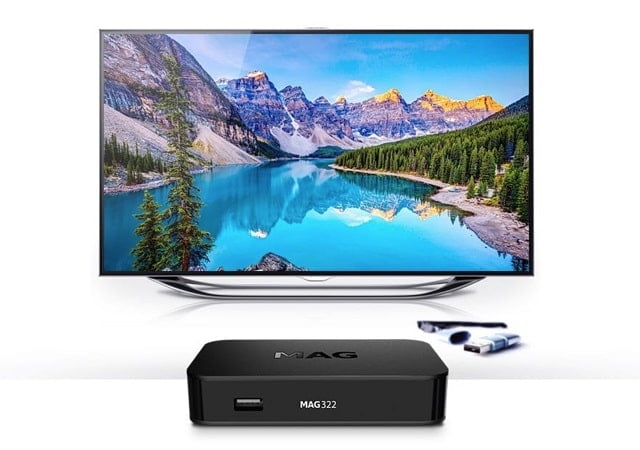
How to Setup IPTV on a MAG Device
Setup IPTV on a MAG Device In today’s digital age, the way we consume television has evolved significantly. Internet Protocol Television (IPTV) has become a popular choice for accessing television content, and MAG devices are one of the preferred platforms for enjoying IPTV services. This article will guide you through the process of setting up and troubleshooting IPTV on a MAG device, as well as provide additional tips and support to enhance your viewing experience.
What is IPTV and How Does it Work on a MAG Device?

IPTV, or Internet Protocol Television, is a technology that delivers television content over the internet rather than traditional cable or satellite methods. This allows users to access their favorite TV shows, movies, and live broadcasts through an internet connection. When it comes to MAG devices, they are a series of set-top boxes developed by Infomir, designed to deliver IPTV content seamlessly to users.
Understanding IPTV Technology
IPTV operates by delivering television content using internet protocol over a broadband connection. This allows for interactive and customizable viewing experiences, offering features such as video on demand, catch-up TV, and more.
Overview of MAG Devices
MAG devices are renowned for their user-friendly interface and seamless integration with IPTV services. They are equipped with advanced hardware and software to ensure smooth streaming and an enhanced viewing experience.
Features of IPTV on MAG Devices
IPTV on MAG devices provides access to a wide range of channels, on-demand content, and interactive features, all delivered through a user-friendly interface.
Setting Up IPTV on a MAG Device
Setting up IPTV on a MAG device is a straightforward process that involves configuring the device to connect to your IPTV service provider’s server, entering the portal address, and assigning the necessary MAC address for authentication.
Configuring IPTV on MAG Device
Begin by accessing the settings on your MAG device to configure the IPTV service. This includes entering the necessary details provided by your IPTV service provider to establish a connection.
Entering Portal Address on MAG Device
Once the device is configured, you will need to enter the portal address provided by your IPTV service provider. This serves as the gateway to accessing the IPTV content.
Assigning Mac Address for IPTV on MAG
Assigning the MAC address associated with your MAG device is crucial for authentication and accessing the IPTV service. This unique identifier ensures that the device is authorized to receive the content.
Troubleshooting IPTV on MAG Device
While setting up IPTV on a MAG device is relatively simple, users may encounter occasional issues that hinder the viewing experience. Understanding how to troubleshoot these problems is essential for seamless usage.
Resolving Portal Connection Issues
If you encounter difficulties connecting to the IPTV portal, troubleshooting steps such as checking the network connection, verifying the portal URL, and restarting the device can help resolve the issue.
Fixing MAC Address Assignment Problems
In the event of MAC address assignment issues, ensuring that the correct MAC address is entered and contacting your IPTV service provider for assistance can help rectify the problem.
Dealing with Streaming Quality Problems
Issues related to streaming quality, such as buffering or pixelation, can be addressed by reviewing the network connection, adjusting the settings on the MAG device, or contacting the IPTV service provider for guidance.
Accessing IPTV Services on a MAG Device
Once IPTV is successfully set up on your MAG device, you can begin accessing the wide array of content and features offered by the IPTV service provider.
Activating IPTV Subscription on MAG Device
If a subscription is required for IPTV access, follow the instructions provided by the IPTV service provider to activate your subscription on the MAG device.
Navigating Main Portal Screen for Live TV

Upon activation, the main portal screen will display available live TV channels and on-demand content, providing a user-friendly interface for navigation.
Using Remote Control to Watch Live TV
Utilize the remote control provided with your MAG device to browse channels, select programs, and start watching live TV effortlessly.
Additional Tips and Support for IPTV on MAG Devices
Enhance your IPTV experience on MAG devices with additional tips and support resources to maximize your viewing satisfaction.
Following Step-by-Step Setup Tutorial
How to setup IPTV on a MAG device ?
With the advancement in technology, watching TV has evolved beyond traditional cable and satellite services. IPTV, or Internet Protocol Television, allows users to stream live TV and on-demand content over the internet. In this article, we will delve into the process of setting up IPTV on a MAG device, understanding its functions, troubleshooting common issues, and finding additional resources for a seamless experience.
What is IPTV and how does it work on a MAG device?
IPTV refers to the delivery of TV content over IP networks, offering a convenient and cost-effective way to access a wide range of channels. MAG devices are popular for streaming IPTV content due to their user-friendly interfaces and reliable performance.
Overview of MAG devices and IPTV
A MAG device, such as MAG 250, MAG 322, or MAG 410, is a set-top box designed to deliver IPTV content to your television. These devices are equipped with specialized software and hardware to provide a seamless IPTV viewing experience.
Setting up IPTV on a MAG device
The process of setting up IPTV on a MAG device involves configuring the device to connect to an IPTV service provider. This typically includes entering the portal URL and server information to access the desired content.
Understanding MAC address for IPTV setup
The MAC address is a unique identifier assigned to network interfaces for communications on the network. In the context of IPTV setup on a MAG device, the MAC address may be required by the service provider to authenticate and authorize the device for streaming content.
How to set up IPTV on a MAG device?
Setting up IPTV on a MAG device involves a series of straightforward steps to ensure seamless access to live TV and on-demand content.
Accessing the main portal screen on a MAG device
Upon powering on the MAG device, users are greeted with the main portal screen, the central hub for accessing IPTV content. From here, users can navigate through available channels, access settings, and manage subscriptions.
Entering the IPTV server URL and portal address
Users must input the specific portal address and server URL provided by their IPTV service provider. This information enables the MAG device to connect to the designated server for streaming content.
Restarting and navigating the IPTV on MAG device
After entering the essential details, users should restart the device to ensure that the configuration settings are applied. Once restarted, users can navigate through the IPTV interface using the remote control to start watching live TV and explore additional features.
What are the steps to start watching live TV with IPTV?
Subscribing and setting up IPTV on a MAG device is a streamlined process that involves accessing the desired content and managing the viewing experience.
Step-by-step guide to subscribing and setting up IPTV
Subscribing to an IPTV service and setting it up on a MAG device typically involves selecting a subscription plan, entering the necessary details, and configuring the device to access the service’s offerings.
Remote control access and managing live TV on MAG
The remote control allows users to effortlessly navigate through channels, access on-demand content, and manage settings to optimize their IPTV experience on a MAG device.
Contacting support for IPTV setup assistance
In the event of any challenges during the setup process, users can contact the IPTV service provider or device manufacturer for prompt assistance and troubleshooting.
How to troubleshoot common issues with IPTV setup on MAG devices?
While setting up IPTV on a MAG device is generally straightforward, users may encounter common issues that can be addressed with simple troubleshooting steps.
Dealing with connection and streaming issues
If users experience connectivity or streaming issues, checking the internet connection, server status, and device settings can help resolve the issues and ensure uninterrupted viewing.
Resolving errors on the main portal screen
Errors or discrepancies on the main portal screen can often be resolved by restarting the device, verifying the portal URL, and ensuring the MAC address is correctly registered with the service provider.
Reconfiguring the settings and subscription on MAG device
For persistent issues, reconfiguring the device settings and revisiting the subscription details can provide a fresh start to troubleshoot and resolve any underlying issues.
Where to find additional resources and tutorials for IPTV on MAG devices?
Exploring additional resources and tutorials can further enhance the IPTV experience on MAG devices and provide valuable insights into utilizing advanced features.
Exploring online tutorials and guides for MAG IPTV setup
Online tutorials and guides offer valuable tips, tricks, and step-by-step instructions for maximizing the capabilities of MAG devices for IPTV streaming.
Navigating the support and community forums for MAG devices
Community forums and support platforms provide valuable insights, troubleshooting assistance, and discussions among users to address specific queries related to MAG devices and IPTV setup.
Utilizing remote control functions and advanced settings for IPTV
Exploring advanced settings and features on MAG devices, such as utilizing the remote control functions and optimizing the viewing experience, can be beneficial for users looking to make the most of their IPTV setup.
Many IPTV service providers offer comprehensive setup tutorials and guides to assist users in configuring their MAG devices for optimal performance.
Getting Help from IPTV Service Provider
If you encounter challenges during setup or while using IPTV on your MAG device, don’t hesitate to reach out to your IPTV service provider for dedicated support and assistance.
Contacting Customer Support for Assistance
In the event of technical issues or inquiries, seek assistance from the customer support team of your IPTV service provider to address any concerns promptly.
